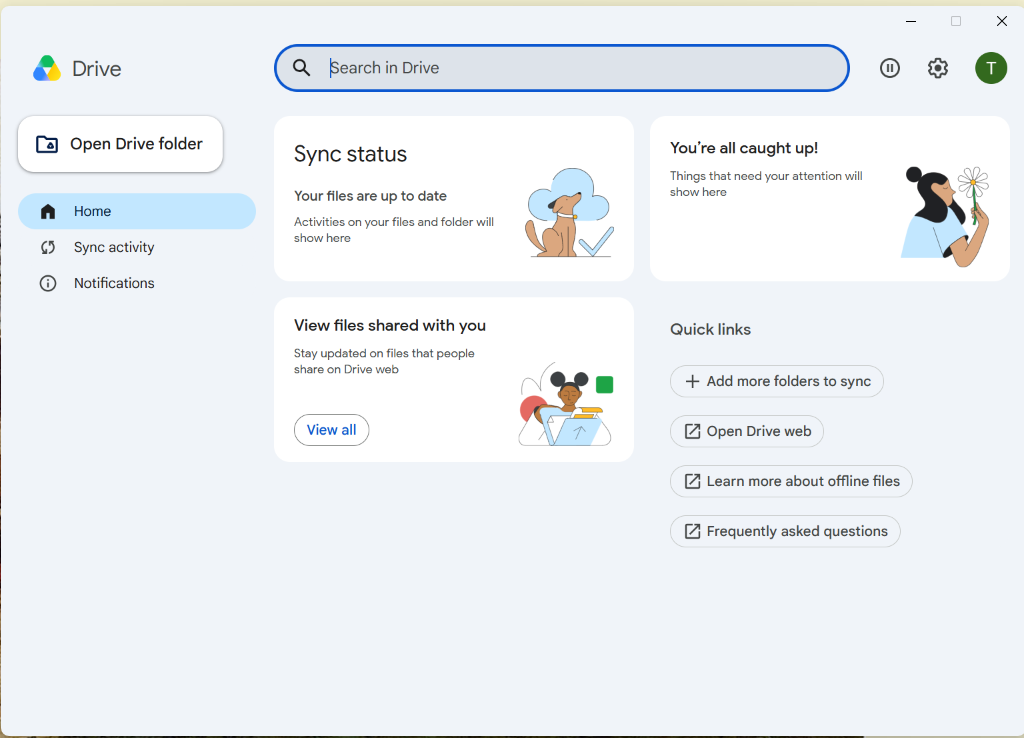
These steps are required for all users. BYOD and School laptops need to have Google Drive client installed. To learn more about setting up the laptop go to Technology at Greenwood site.
1. Download Google Drive for Desktop from the HERE. Once downloaded, start the Google Drive for Desktop installer.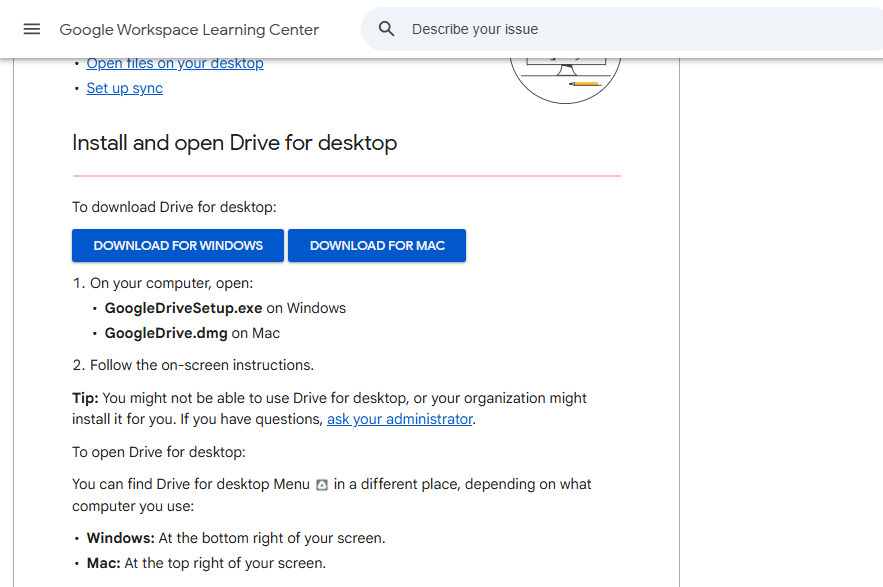
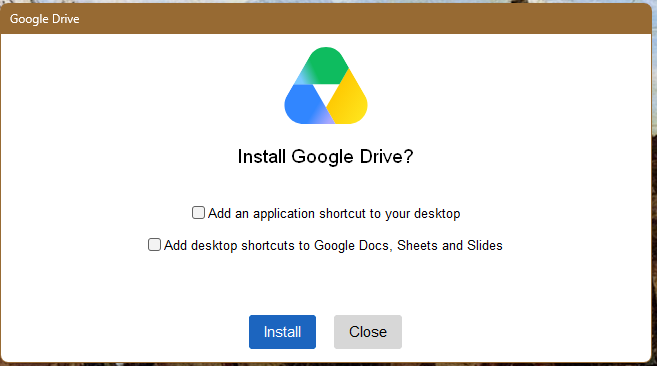
2. Before continuing the installation, We recommend you uncheck "Add an application shortcut to your desktop" and "Add desktop shortcuts to Google Docs, Sheets, and Slides".
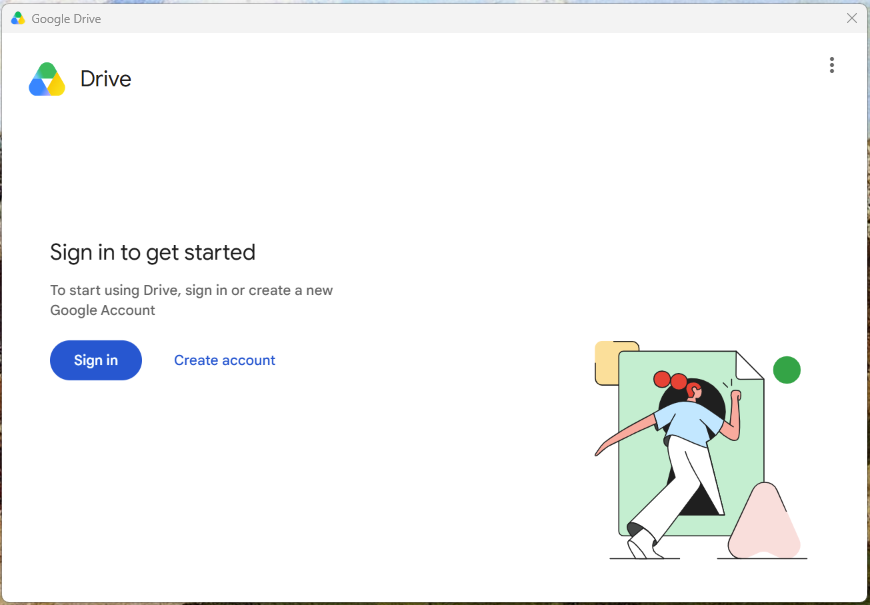
3. Once installed, It will ask you to sign in. Please sign in with your Greenwood student account.
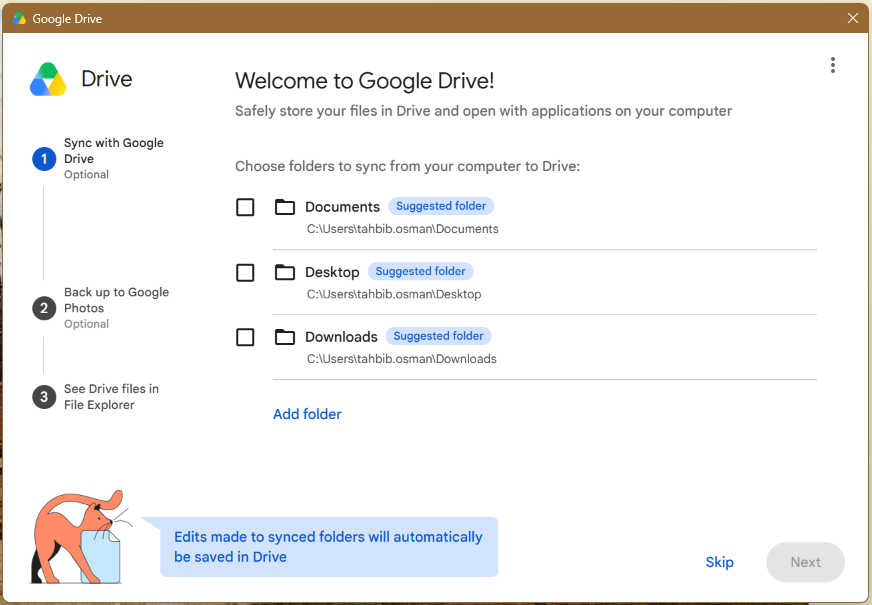
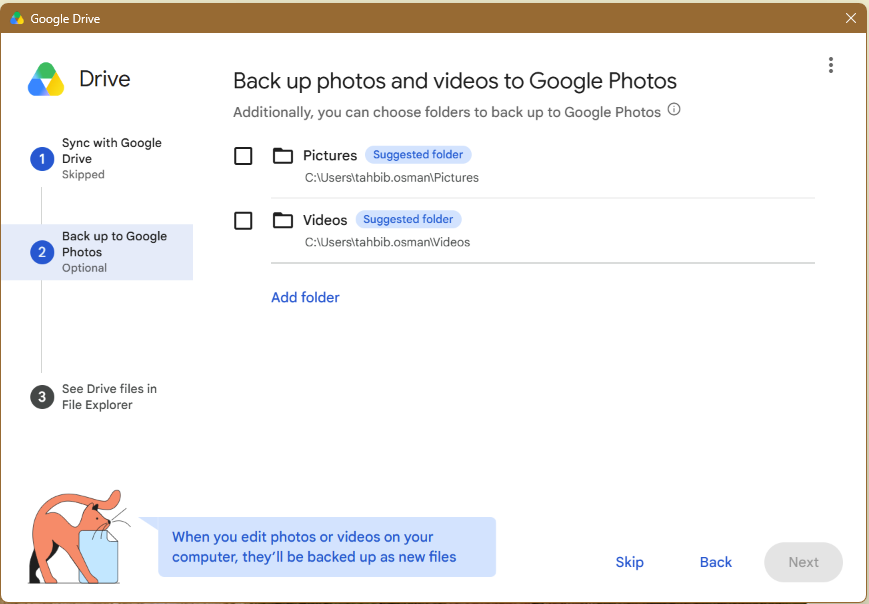
4. Unless specified by your teacher, we do not recommend choosing to back up local files as it takes up cloud storage and network bandwidth. Ensure that you click skip for the next two prompts to avoid backing up local files.
5. Now you have installed and set up Google Drive for Desktop!