
1. Activate the function
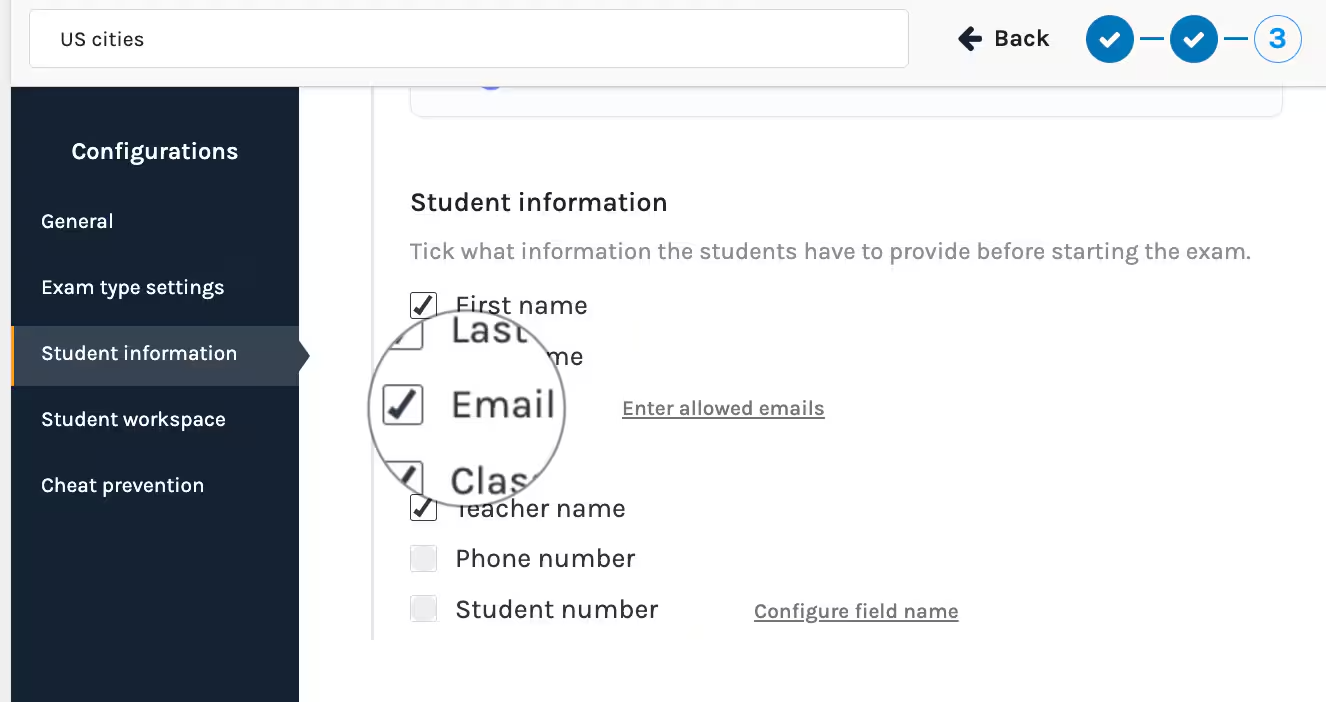
You activate the function by checking Email under Student information in Step 3 when you create or edit an exam.
2. Students join the exam
Students then enter their email address when they connect to the exam.

Upon resumption
Send individual exam keys to multiple students
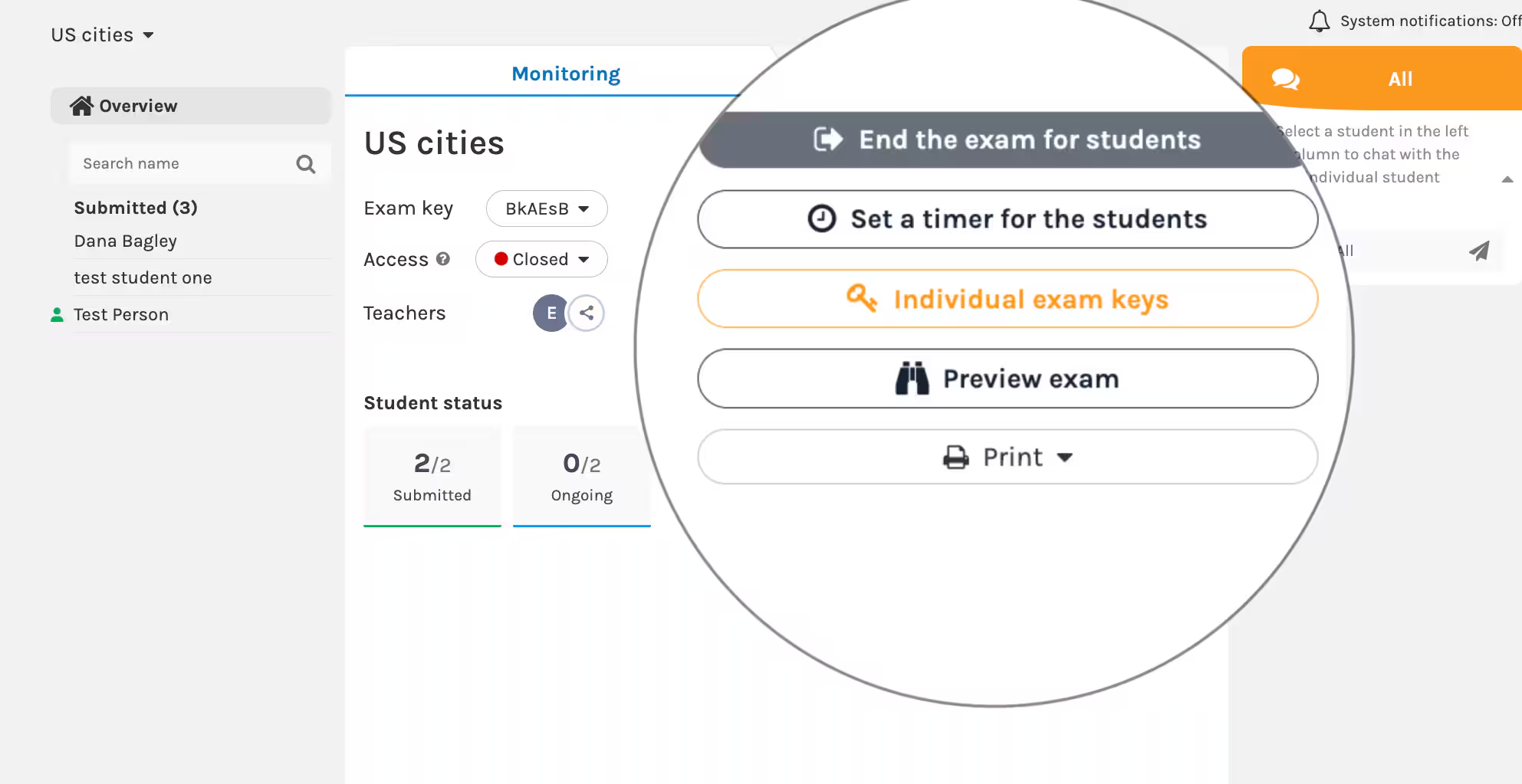
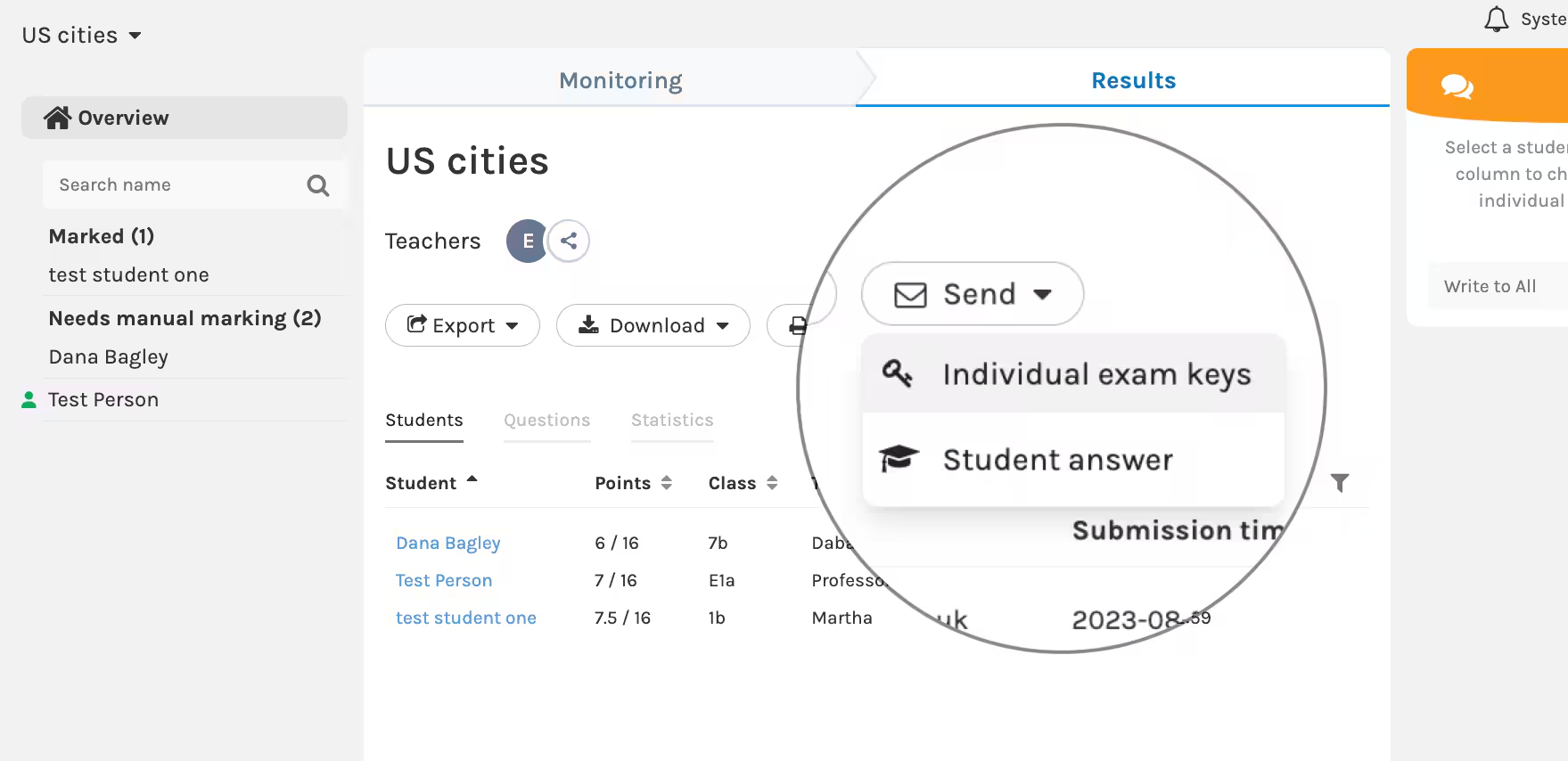
When resuming - send the individual exam keys to the students. You do this via the monitoring/results view.
- Monitoring view:
- Results view:
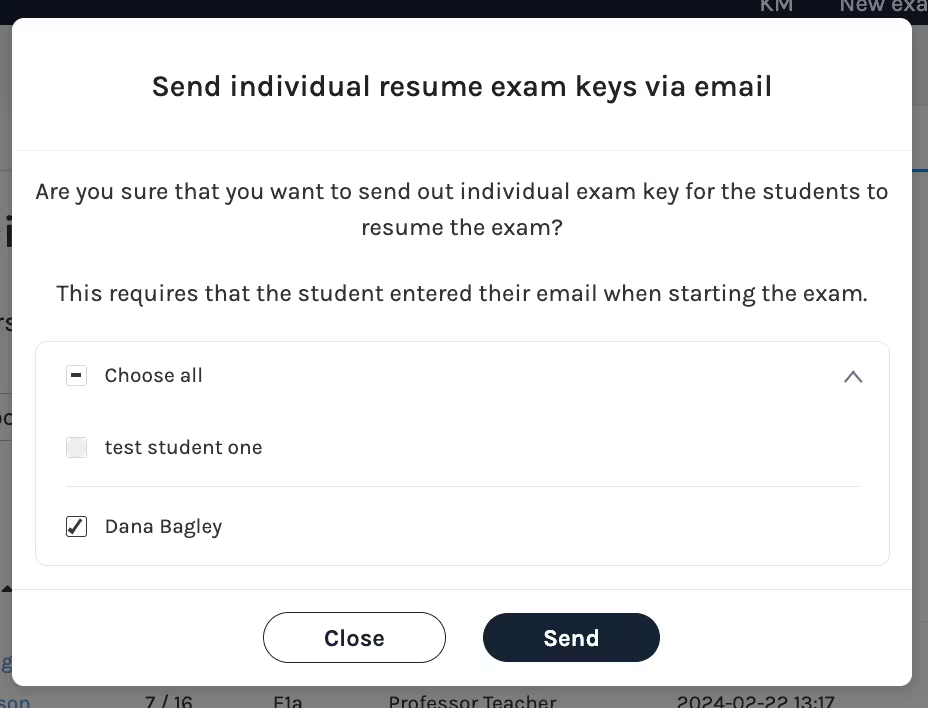
- Fill in any exceptions (for example if students are absent etc.) and click Send.

Send the individual exam key to a separate student
You can also send the exam key to an individual student.
- Go to the Results view for the individual student.
- Click Send > Send individual exam keys > and confirm by clicking Send.